How to Use Any YouTube Video for Language Listening Practice
YouTube can be great for language learning – but only if you do more than just watch. In this guide, you’ll learn how to use Copilot in Microsoft Edge to turn any YouTube video into a structured listening session – testing your comprehension and building vocabulary from what you heard.
What you’ll need
Microsoft Edge with Copilot (free) – the recommended tool for this tutorial
A short YouTube video in your target language, preferably with subtitles or captions enabled
If you’d rather use ChatGPT, you can – but you’ll need to copy the transcript from the YouTube video page and paste it in manually, since ChatGPT can’t access the video directly.
Step 1: Pick a video
Open a YouTube video in Microsoft Edge – either paste a link you already have, or head to YouTube and search for something in your target language.
Watch it as many times as you need, then click the Copilot icon in the upper-right of Edge (look for the colorful swirl) to open it as a side panel alongside the video.
(If you’re using ChatGPT, grab the transcript first: click More in the video description, then Show Transcript – as shown here. Copy the text that appears in the side panel and paste it into ChatGPT.)
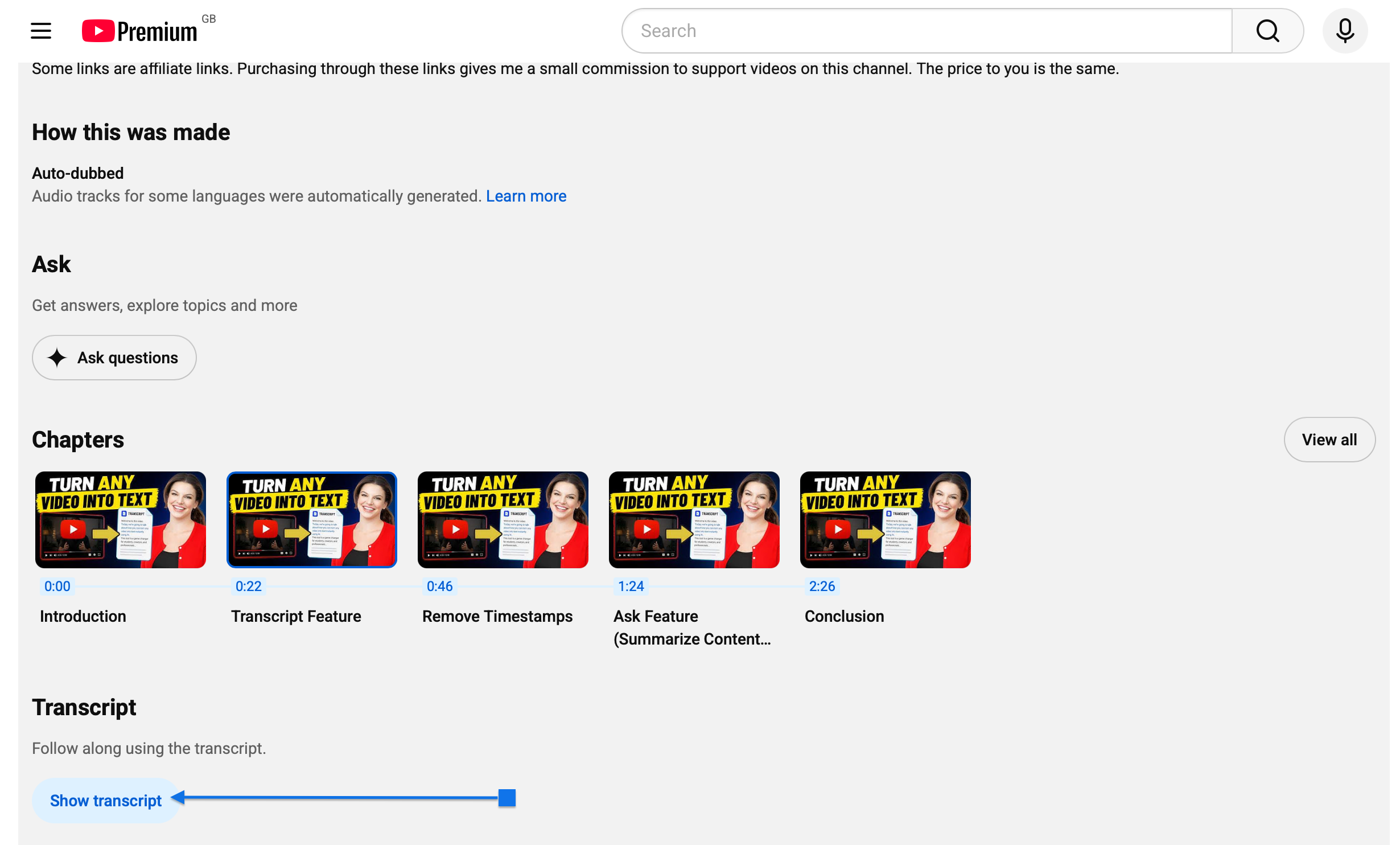
Copy a YouTube transcript and use it for targeted language practice with AI.
Note: not all YouTube videos have transcripts. If none is available, you can generate one withTurboScribe.
Step 2: Start your session
Go through these prompts in order – they work in both Copilot and ChatGPT.
Multiple-choice questions
Ask the AI to quiz you on the video’s content with three multiple-choice questions in your target language, keeping score as you go. You can use this prompt:
I am a [LEVEL & LANGUAGE| learner. Please ask me three multiple-choice questions about the content of this video in [LANGUAGE]. I should reply in [LANGUAGE]. Please keep score and move on to the next question automatically after you react to my answer.
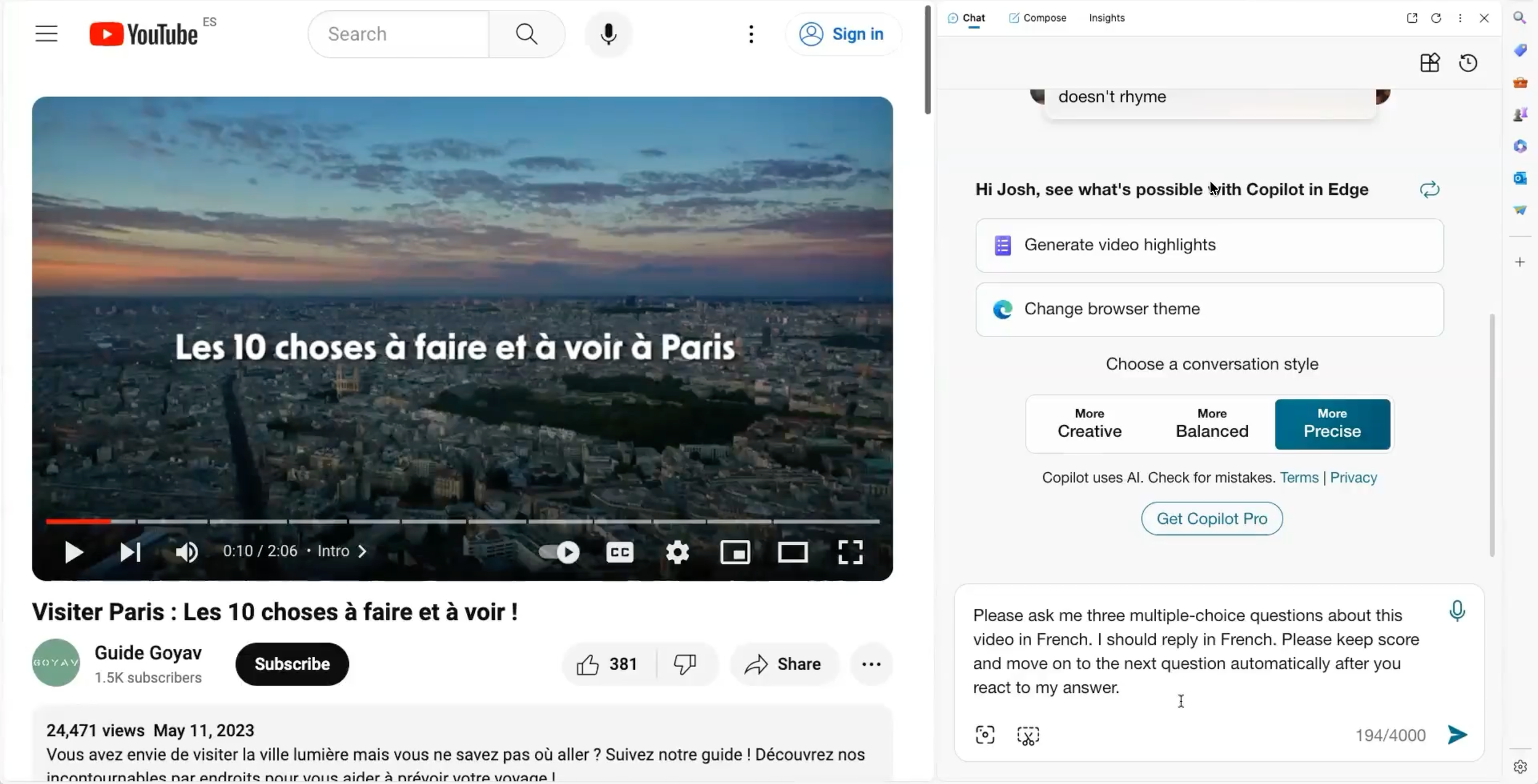
Test your video comprehension with an AI-generated quiz in your target language.
True/false questions
Next, ask for five true/false questions about the video, one at a time. You can use this prompt:
Please ask me five true or false questions about the facts in the content of this video. The questions and my answers should be in [LANGUAGE]. Ask them one-by-one and keep score of my responses.
The AI may offer to increase the difficulty – feel free to go down that rabbit hole, but come back for vocabulary practice.
Vocabulary
Now, ask the AI for five words at your level drawn from the video, with definitions in your target language. You’ll use them in the next step (Cloze exercise). You can use this prompt:
Five [LEVEL] words I should learn from the content of this video, along with a definition in [LANGUAGE].
Cloze exercise
Ask the AI to write a sentence for each vocabulary word with a gap where the word belongs, paraphrased from the video so you’re working with new phrasing rather than recalling what you already heard. Fill in the blanks one by one. You can use this prompt:
Write a sentence for each word that paraphrases the text and uses the word. Leave a gap where the word should be. It’s my task to put the correct word into each gap. Quiz me on these one by one, and move on to the next question after you’ve responded to my answer.
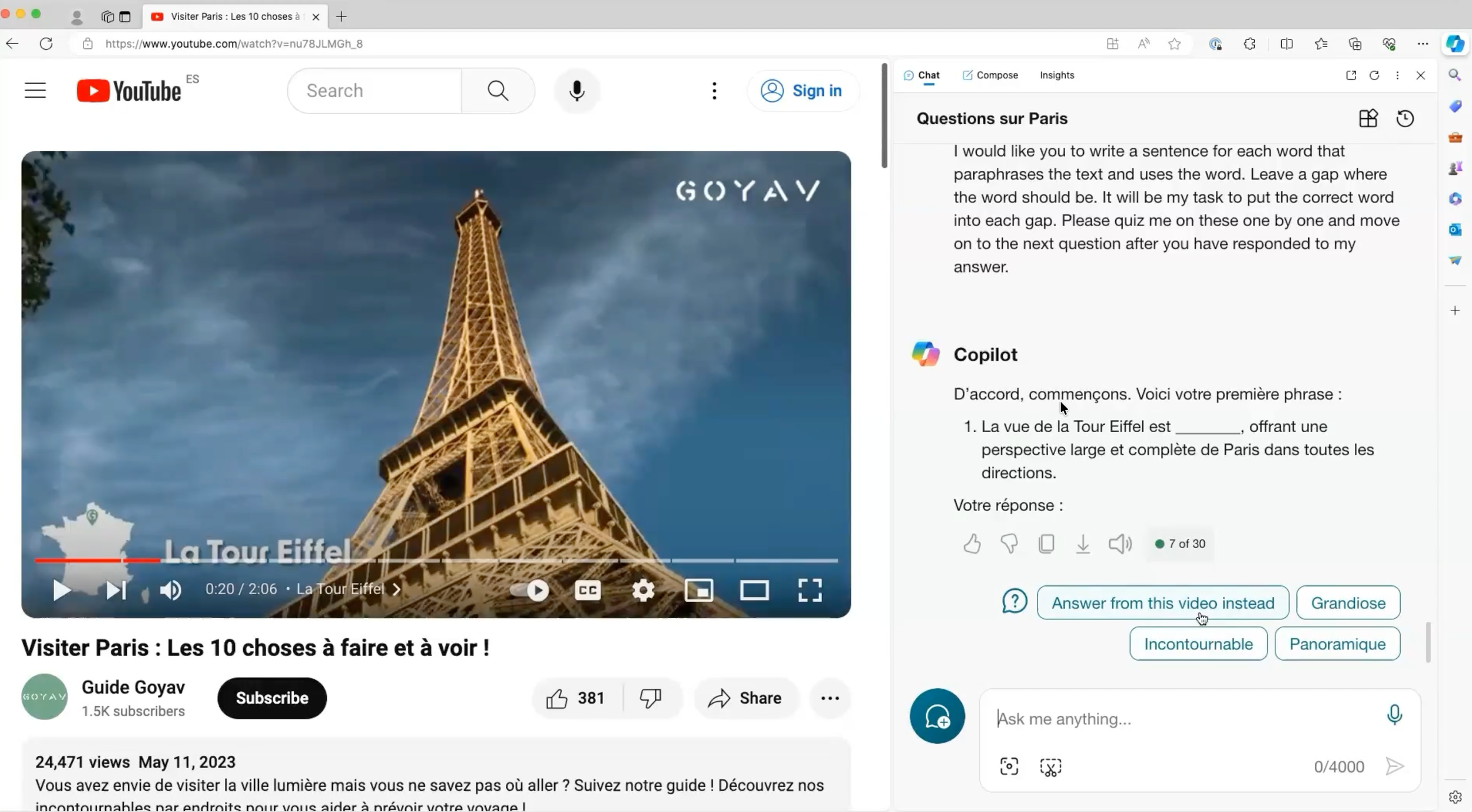
Practice video vocabulary with AI-generated fill-in-the-blank questions.
Open-ended questions
Next, ask the AI to put five open-ended questions to you about the video’s content. You can use this prompt:
Please ask me five open-ended questions about the content of this video. I should answer in [LANGUAGE]. Please correct me when I make an error and provide me with a correct version of how I should say it. Explain the error and ask one question at a time.
Extra credit
Finally, write a summary of the video in your target language – in prose or bullet points – then compare it to an AI-generated one. In Copilot, click the Summarize this video button in the chat. You’ll get a summary plus timed highlights. In ChatGPT, use this prompt:
Generate highlights from the content of this YouTube video in [LANGUAGE].
Note: the Copilot auto-summary may appear in a language other than your target. If that happens, use the prompt above instead.
Why we love this
You choose the content – something you’re actually interested in – which makes the whole thing feel less like homework. And the questions push you to actually understand what you watched, not just get the gist of it.
Going further
If you want to dig deeper into the language from a video – beyond comprehension and into grammar and vocabulary study – pair this with The Extractor, an AI Language Club tutorial that pulls verb lists, key vocabulary, and grammatical information directly from transcripts.
And if you’d like to apply the same approach to articles and written texts, the Reading Quiz Show follows the same structured format for reading comprehension.
Where to find it
You’ll find this tutorial (which we call the YouTube Quiz Show) and the others mentioned in this post inside the AI Language Club. Membership gets you the full tutorial library – complete with video walkthroughs and step-by-step instructions – plus a community of language learners sharing what’s working. Just $9 a month.